
Quick answer
If you want to know how to download a Word document from Word Online, there are two common situations:
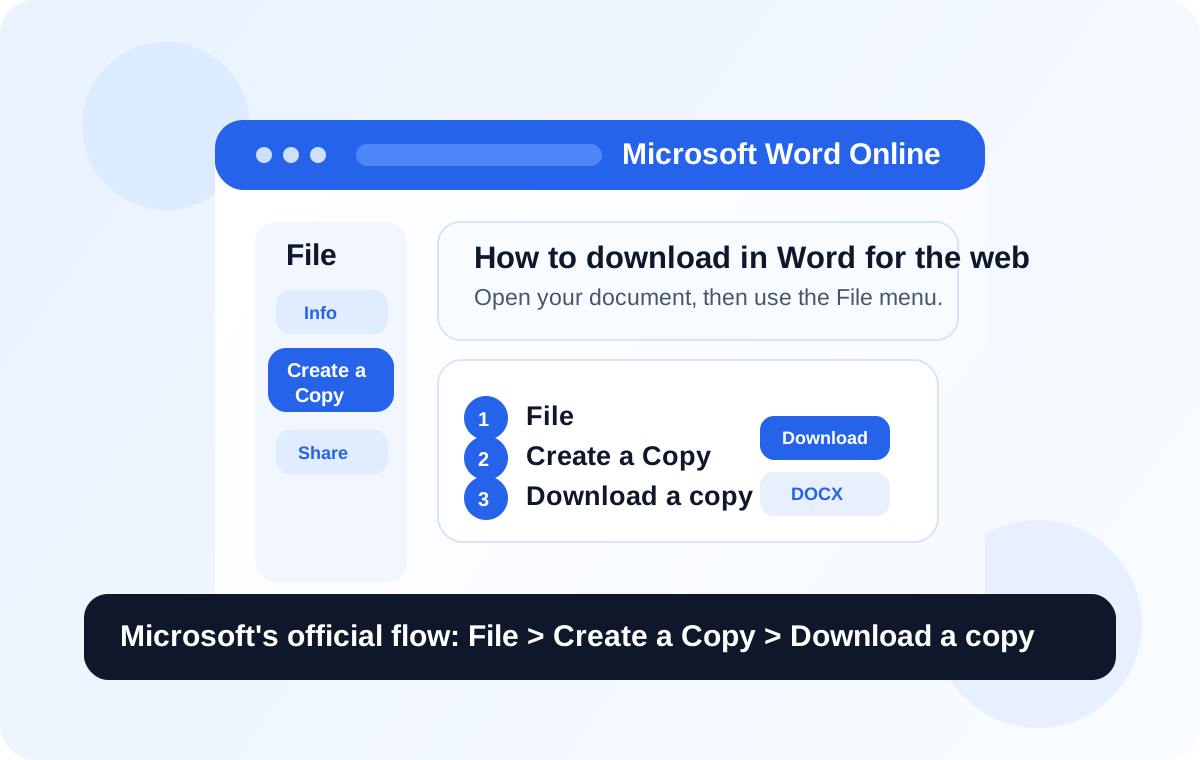
- In Microsoft Word Online, open your file and go to File > Create a Copy > Download a copy.
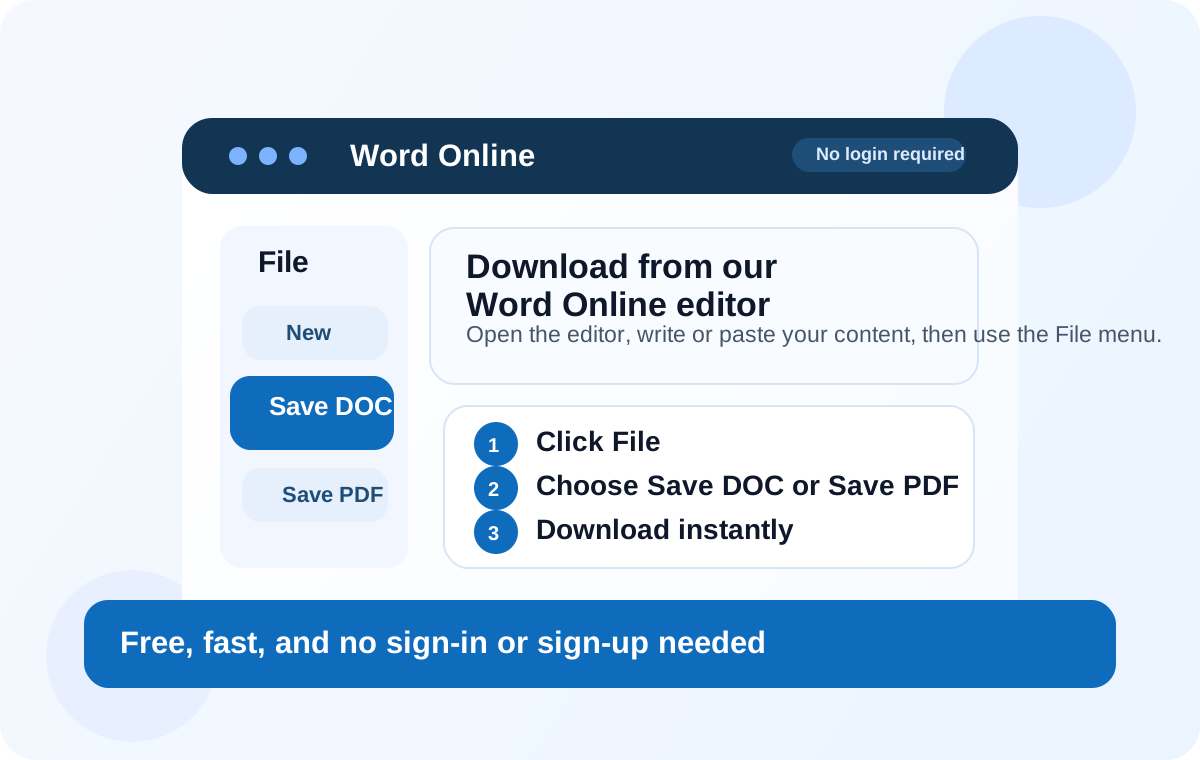
- In our Word Online editor, open the editor, click File, and choose Save DOC or another format such as PDF, TXT, or HTML.
The biggest difference is convenience. Microsoft Word Online usually assumes you are already signed in and working from OneDrive. Word Online is simpler if you want a free tool that lets you write and download immediately without creating an account.
How to download a document from Microsoft Word Online
Microsoft's official support guidance for Word for the web explains that you can download a local copy of your document from the File menu. The current path is File > Create a Copy > Download a copy.
Here is the process in plain language:
- Open the document you want to download in Microsoft Word Online.
- Click File in the top-left area of the editor.
- Select Create a Copy.
- Choose Download a copy.
- Your browser should save the Word file to your usual downloads folder.
This is the method most people are looking for when they search for "how to download a Word document from Word Online." The document remains saved in OneDrive as well, but the download gives you a separate copy on your device.
If you already know which file you want and it is stored in OneDrive, Microsoft also documents a shortcut: open OneDrive, hover over the file, open the more-actions menu, and click Download. That can be useful when you do not want to open the document first.
Why some users still find Microsoft Word Online less convenient
Microsoft Word Online is useful, but it is still built around the Microsoft account and OneDrive workflow. That means many people run into the same friction points:
- You generally need to sign in before you can start working.
- Your document is cloud-first, which is great for collaboration, but not always the fastest path if you simply want to write something and download it.
- People who just need a quick document often end up going through more steps than expected.
That is exactly where a lighter browser-based alternative becomes attractive.
How to download a Word document from our Word Online editor
Our Word Online tool is made for speed. You can open it, start writing immediately, and download your file without creating an account. There is no sign-in or sign-up step in front of the editor, which makes it a better fit for quick tasks, temporary work, student assignments, fast drafts, and simple document exports.
Here is the download method on Word Online:
- Go to the Word Online editor.
- Write your content, paste your text, or upload and edit an existing Word document.
- Click the File tab in the editor.
- Choose the format you want:
- Save DOC for a Word-compatible file
- Save PDF for a PDF-ready download flow
- Save TXT for plain text
- Save HTML for formatted web-friendly output
- Your file downloads directly to your device.
This is one of the main reasons many users prefer Word Online over traditional cloud-first editors. You open the tool and get to work right away. No account creation. No waiting. No unnecessary friction.
Why Word Online is better for quick downloads
If your goal is simply to create a document, edit it, and download it, Word Online is often the better choice for practical reasons:
- It is free to use.
- It does not require sign-in.
- It does not require sign-up.
- You can download in more than one useful format right from the File menu.
- It works well for quick document jobs when you do not want to commit to an account-based workflow.
That does not mean Microsoft Word Online is bad. It simply serves a different kind of workflow. If you live inside OneDrive and Microsoft 365 every day, Microsoft's setup makes sense. If you want speed, simplicity, and no-account editing, Word Online is the easier tool.
Which option is easier for most people?
For someone who already uses Microsoft 365 heavily, Microsoft Word Online is familiar. But for someone who just searched "how to download a document from Word Online," the easier answer is often this:
Use Word Online if you want the shortest path from writing to downloading.
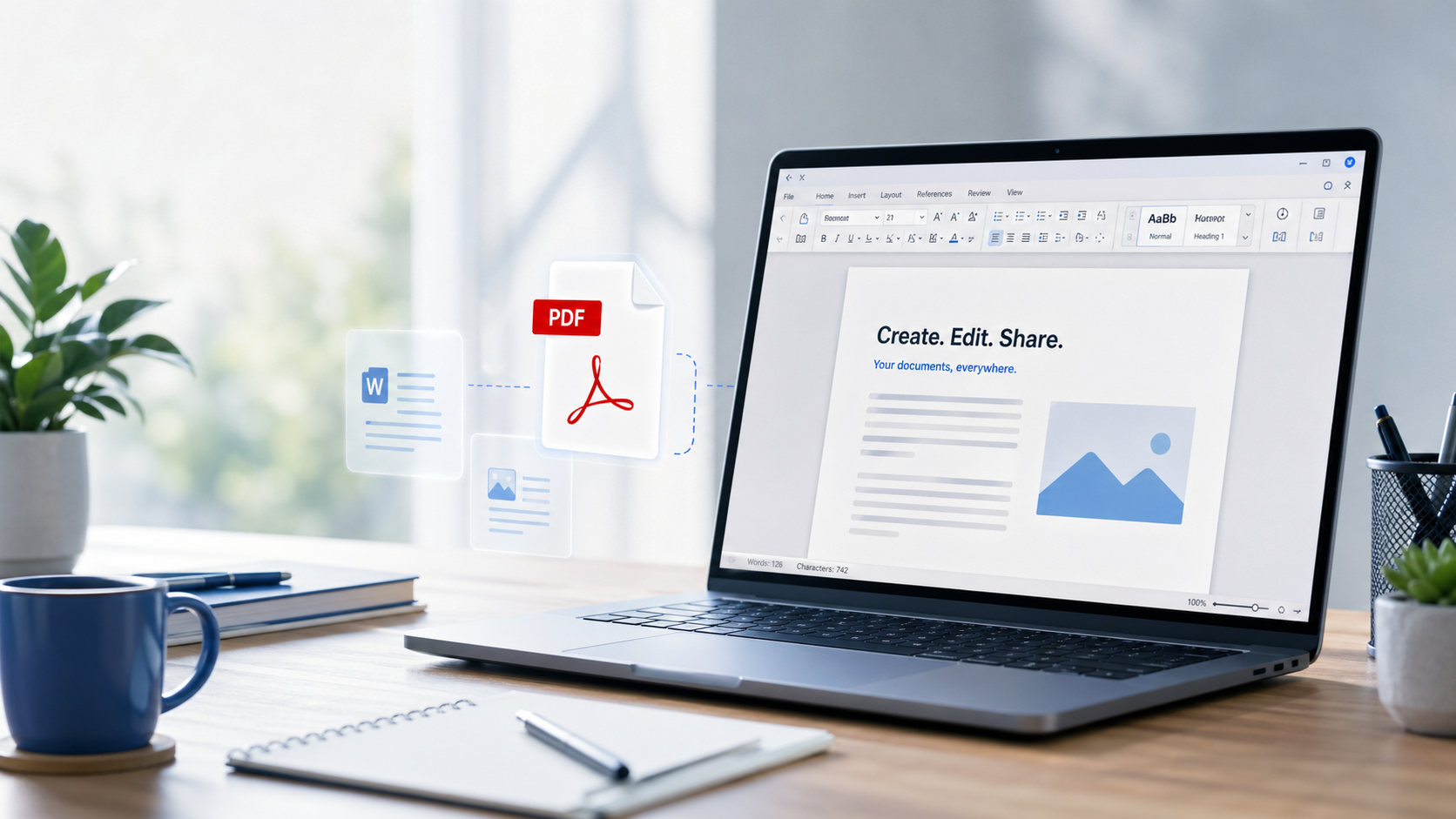
You get a browser editor, direct export options, and no account barrier. That makes it especially useful when you are in a rush, on a shared device, helping another person, or working on a one-off document you do not want to manage in a cloud account.
FAQ
Where does Microsoft Word Online save my file?
It normally saves to OneDrive while you work. When you use the download option, your browser also saves a copy to your device.
Can I download a Word file without signing in?
On Microsoft Word Online, sign-in is usually part of the normal workflow. On our Word Online editor, you can write and download without creating an account.
Can I download as PDF too?
Yes. On Word Online, the File menu also gives you PDF export options, making it useful for both Word and PDF workflows.
What if I only need to edit and download quickly?
That is exactly the kind of task Word Online is designed for. Open the editor, make your changes, and download immediately.
Ready to try the easier option?
Open Word Online and download your document without sign-in, sign-up, or installation.