
Quick Answer
Creating a Word document online is a simple process. You can utilize a variety of web-based tools that enable users to draft, edit, and convert documents without any software installation. A quick and user-friendly option is WordOnline.online, which provides a seamless experience.
Introduction to Online Document Creation
In today's digital era, creating documents online has become increasingly essential. Whether for work, school, or personal projects, the ability to access document creation tools from any device, anywhere, offers significant convenience and flexibility.
Benefits of Creating Word Documents Online
- Accessibility: Use from any device with internet access.
- No installation required: Save storage and time.
- Real-time collaboration: Work simultaneously with others.
- Ease of sharing: Quickly share documents via links or email.
Step-by-Step Guide to Creating a Word Document
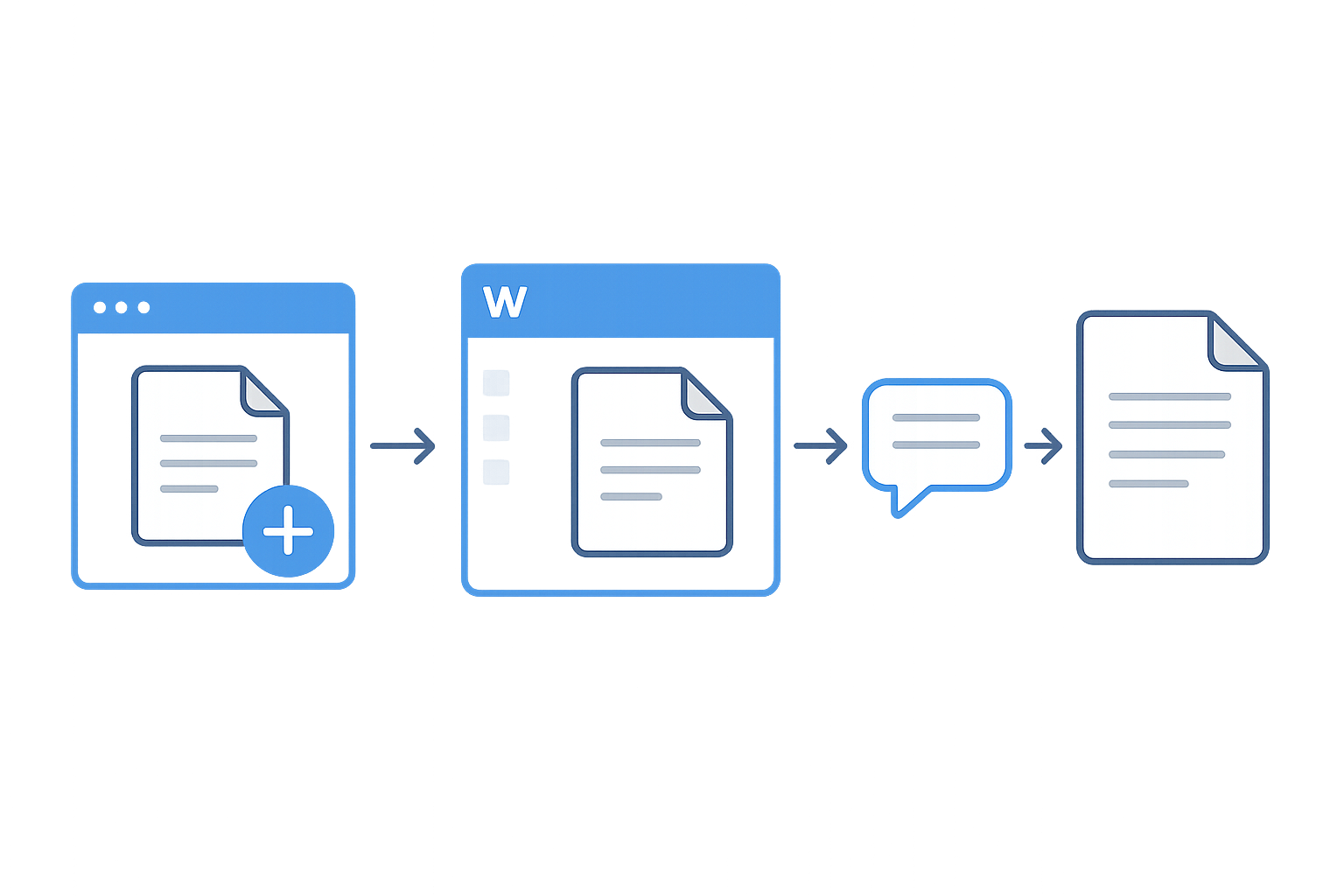
- Visit a Document Creation Website: Open your browser and head to WordOnline.online.
- Select 'Create New Document': Look for options to create a new document.
- Choose Your Template: Decide if you want a blank page or a template.
- Edit Your Document: Utilize formatting tools to add text, headers, and images.
- Save Your Work: Click the save option and choose your preferred format.
Formatting Your Document: Tips and Tricks
To enhance the visual appeal of your document, consider the following:
- Use headings and subheadings for organization.
- Incorporate bullet points and numbered lists for clarity.
- Adjust font styles for emphasis but keep it readable.
- Preview your document to confirm formatting.
Saving and Sharing Your Online Word Document
Once your document is ready, ensure proper saving and sharing methods:
- Choose the Correct Format: Options could include DOCX, PDF, etc.
- Use the Share Feature: Send links or email directly from the platform.
- Download the Document: Save it locally on your device for offline access.
Feature Comparison
The table below highlights differences between WordOnline.online and other document platforms.
| Feature | WordOnline.online | Microsoft 365 | Google Docs |
|---|---|---|---|
| Cost | Free | Subscription-based | Free with limited features |
| Browser-Based | Yes | Yes | Yes |
| Real-time Collaboration | Yes | Yes | Yes |
| File Format Options | DOCX, PDF | Diverse | DOCX, PDF |
| No signup needed | Yes | No | No |
Frequently Asked Questions
What types of documents can I create online?
You can create various document types including reports, letters, resumes, and more using online tools.
Do I need to sign up to use WordOnline.online?
No, you can start creating documents instantly without any sign-up required.
Can I collaborate on documents with others?
Yes, WordOnline.online allows real-time collaboration, enabling multiple users to work on the same document simultaneously.
How do I convert my document back to PDF?
After creating your document, you can easily convert it back to PDF using the export or save-as option.
What should I do if I encounter technical issues?
If you face any issues, try refreshing the page or clearing your browser cache. You can also check your internet connection.
Conclusion
Creating documents online has never been easier. With platforms like WordOnline.online, you can effortlessly draft, edit, and share documents without the need for downloads or sign-ups. Ready to get started? Visit WordOnline.online and experience fast document creation today!