
Quick answer
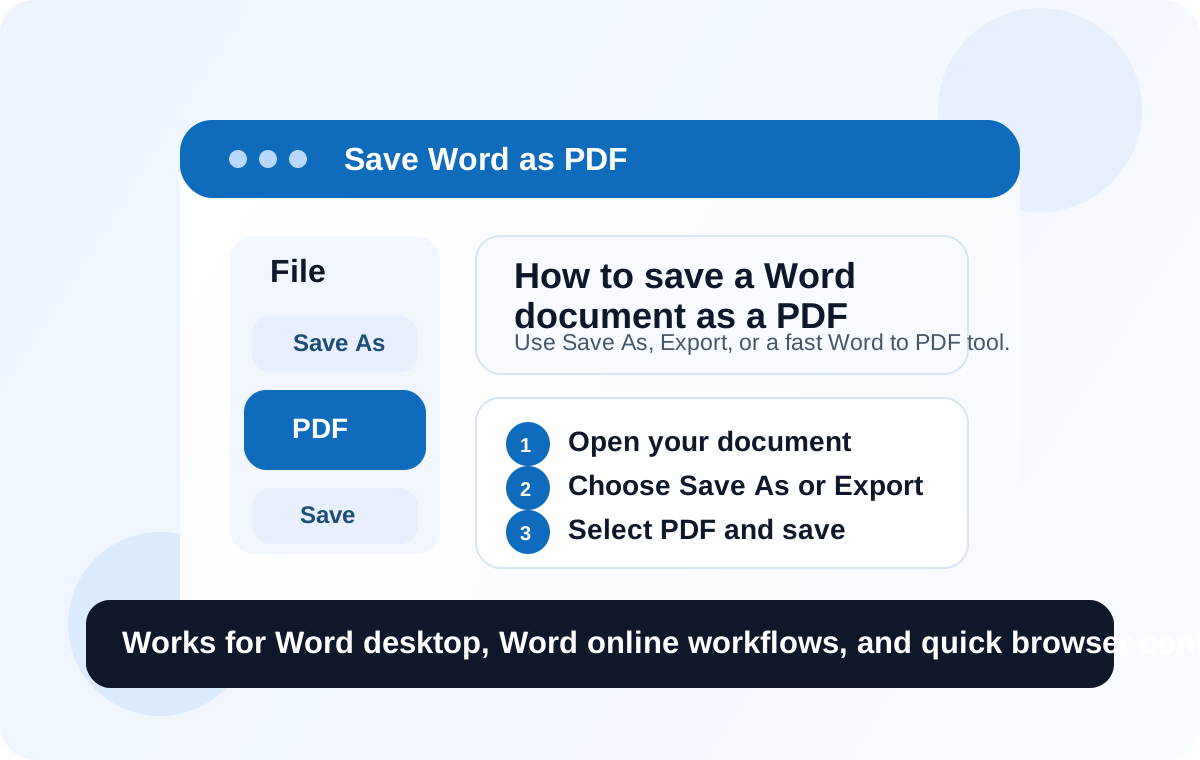
The standard answer to how to save a Word document as a PDF is simple: open the file, go to Save As or Export, choose PDF, and save it. If you need an even faster browser option, you can also use our Word to PDF tool.
If you searched for how to save a word document as a pdf file or how to save a word document as pdf, the exact steps depend on where your file is currently being edited.
How to save a Word document as a PDF in Microsoft Word desktop
For most users, Microsoft Word desktop is the most direct method. This is the classic workflow people mean when they ask how to save a Word document as a PDF.
- Open your Word document.
- Click File.
- Choose Save As or Export.
- Select PDF as the file type.
- Choose where you want to save the file and click Save.
This method keeps your formatting intact in most cases and is ideal when you want a polished, shareable document that looks the same on different devices.
Why people save Word documents as PDF
People usually save Word files as PDF for one main reason: consistency. A PDF is easier to share because it preserves layout, fonts, spacing, and overall appearance better than an editable document. That is why PDFs are commonly used for resumes, reports, assignments, proposals, and final versions of documents.
- PDF files are more stable when opened on different devices.
- They are easier to email or upload.
- They look more professional for final delivery.
- They reduce accidental editing compared with a Word file.
How to save a Word document as a PDF file in an online workflow
If your document is already online, your workflow may be a little different. Some online editors focus on cloud saving first, then offer export or print-based PDF options after that. In practical terms, you still follow the same idea: finish the document, open the file menu, choose the PDF path, and download the final file.
That means if you are looking for how to save a word document as a pdf file while working in a browser, you should check whether the editor offers:
- a direct Save PDF option
- a Download as PDF option
- or a Print dialog that lets you choose Save as PDF
Those are the three most common browser-based PDF routes.
How to save a word document as pdf with Word Online
If you want a faster no-account method, Word Online gives you a much lighter workflow. You do not need sign-in, sign-up, or software installation just to turn a Word document into a PDF.
There are two easy ways to do it on our website:
- Open the Word Online editor, load or write your content, then use the File menu and choose Save PDF.
- Use the dedicated Word to PDF converter to upload your DOCX file, preview it, and export it to PDF.
This is often the easiest answer for users who want to know how to save a word document as pdf without being pushed into an account-based workflow.
Why our Word Online workflow is easier
For many everyday users, the hardest part is not the PDF conversion itself. It is the extra friction around it. That is where Word Online is helpful:
- It is free.
- It does not require sign-in.
- It does not require sign-up.
- It works directly in the browser.
- It gives you a dedicated Word to PDF path when you need a quick result.
If your goal is speed and simplicity, this is usually the cleanest route.
FAQ
What is the easiest way to save a Word document as a PDF?
The easiest way is usually File > Save As > PDF in Microsoft Word desktop, or a direct Word to PDF tool if you are working online.
Is there any difference between "how to save a word document as a pdf" and "how to save a word document as a pdf file"?
No meaningful difference. Both searches usually mean the same thing: converting a Word document into PDF format.
Can I save a Word document as PDF without Microsoft Word installed?
Yes. You can use a browser-based tool like our Word to PDF converter if you do not want to install Microsoft Word.
Can I use Word Online for free to create the PDF?
Yes. You can use the editor and conversion workflow on Word Online without sign-in or sign-up, which makes it especially convenient for quick document jobs.
Need a quick PDF now?
Open the browser-based tool and convert your Word document to PDF without installation or account setup.