
Introduction to Free Online Word Editors
A free online word editor is a web-based tool that allows users to create, edit, and format documents without requiring any software download or installation. These editors offer user-friendly interfaces and essential writing features to enhance productivity.
Key Features to Look For
- Real-time editing and collaboration
- File format support (e.g., DOCX, PDF)
- Word count and statistics
- Cloud integration for easy access
- Minimalistic design for distraction-free writing
Step-by-Step Guide: Using a Free Online Word Editor
- Choosing the Right Editor: Select a free online word editor like WordOnline.online. Ensure it meets your feature requirements.
- Accessing the Editor: Navigate to the website in your browser.
- Starting a New Document: Click on 'Create New Document' to begin your writing.
- Editing Tools: Familiarize yourself with formatting options like font style, size, and paragraph alignment.
- Saving Your Work: Regularly use the 'Save' feature to ensure your changes are stored. Consider exporting files in multiple formats if needed.
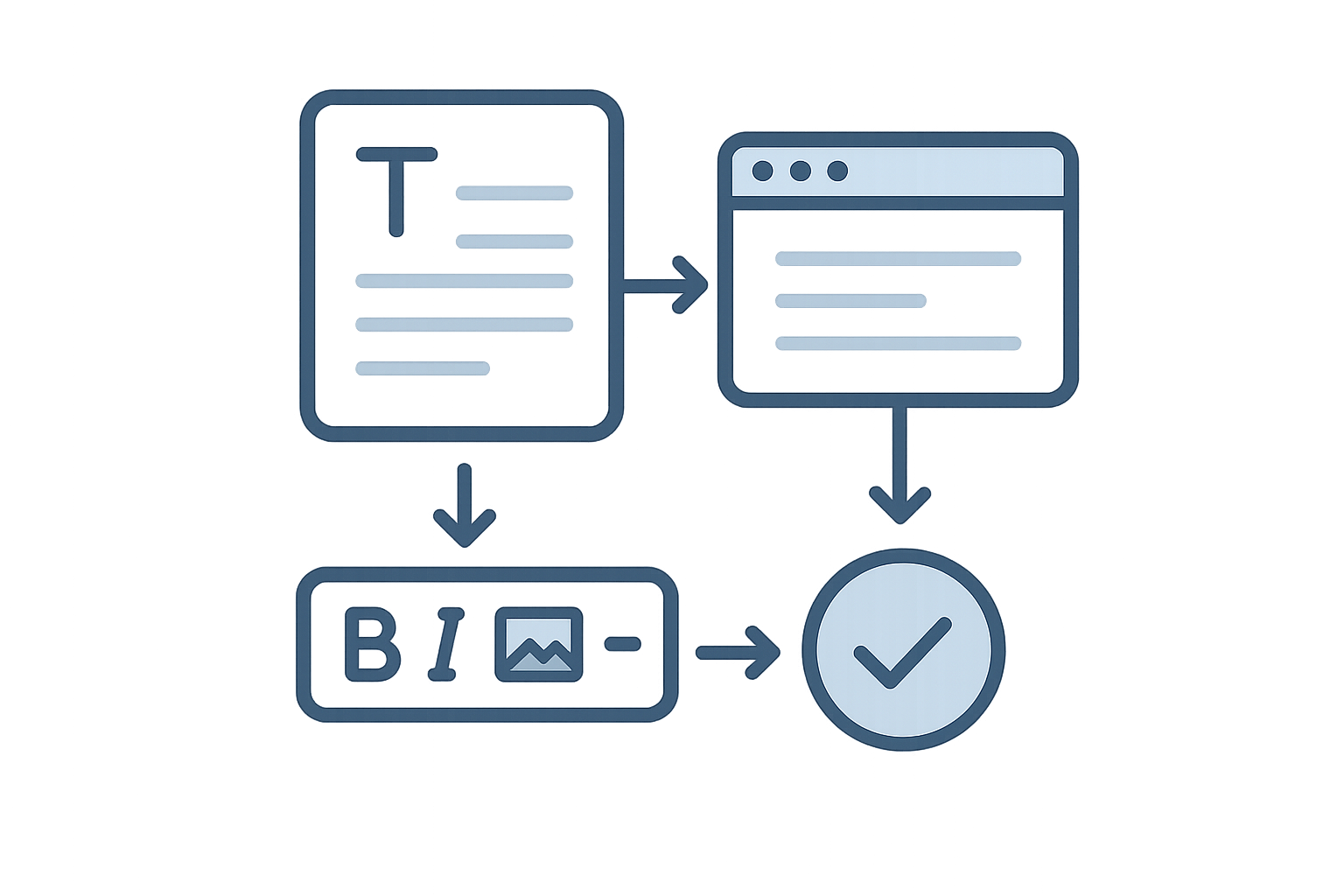
- Using Additional Features: Explore tools like word count, spell check, and the ability to convert files to/from PDF.
- Collaboration: If available, invite others to view or edit your document.
- Finalizing Your Document: Revise content, ensure formatting is correct, and prepare for publication or sharing.
By following these steps, you can effectively use a free online word editor to meet your writing needs.
Feature Comparison of Word Editors
| Feature | WordOnline.online | Microsoft Word Online | Google Docs |
|---|---|---|---|
| Free Access | Yes | Requires Microsoft account | Requires Google account |
| Real-time Collaboration | Yes | Yes | Yes |
| Document Formats Supported | DOCX, PDF | DOCX, PDF | DOCX, PDF |
| Word Count Tool | Yes | Available | Available |
| Cloud Storage | No storage | OneDrive | Google Drive |
Common Tips for Efficient Writing
- Organize your thoughts before starting. Use bullet points to list ideas.
- Set time limits for writing sessions to boost productivity.
- Utilize the word count feature to track progress easily.
- Regularly proofread and use available spelling/grammar tools.
Conclusion: Choosing the Best Free Online Word Editor
Selecting the right free online word editor can significantly enhance your writing experience. Tools like WordOnline.online provide a streamlined path for creating, editing, and converting documents without the hassle of installation or sign-up. Explore our features at WordOnline.online, track your writing progress with our word counter, or convert documents seamlessly with our PDF to Word converter and Word to PDF converter.
Frequently Asked Questions
What is a free online word editor?
A free online word editor allows users to create and edit text documents directly in their web browsers, without requiring any downloads or account sign-ins.
Can I use a free online word editor on my mobile device?
Yes, many free online word editors are mobile-friendly and can be accessed via mobile browsers, providing flexibility for on-the-go editing.
Do I need to sign up to use a free online word editor?
No, platforms like WordOnline.online allow you to use their features without requiring any sign-up or login, enhancing user convenience.
Can I collaborate with others using a free online word editor?
Many free online word editors offer real-time collaboration features, allowing multiple users to edit the same document simultaneously.
Is my document secure when using a free online word editor?
Reputable free online word editors prioritize user privacy and security; however, it is advisable to read their privacy policy before use.