
Quick Direct Answer
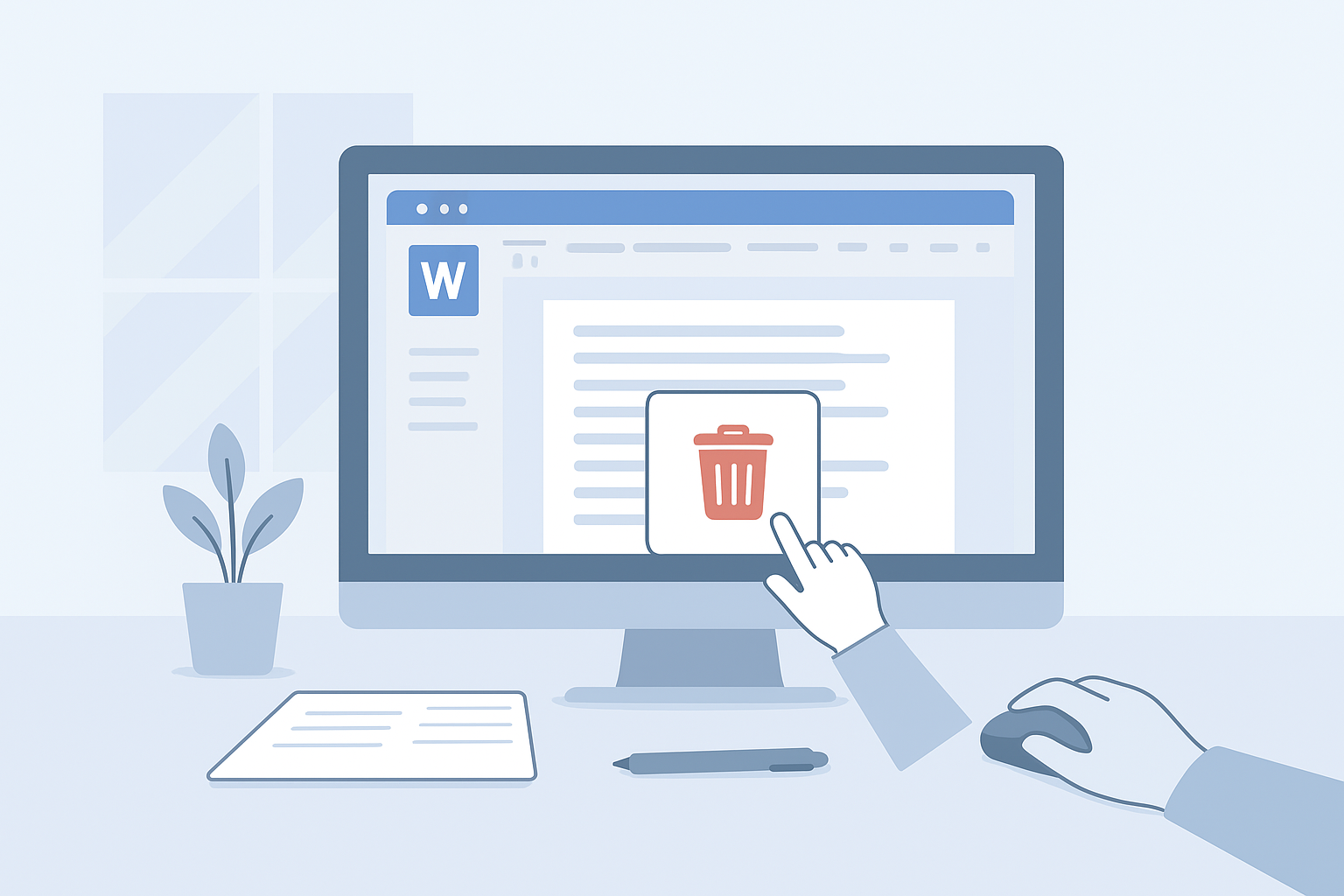
To delete a page in Word Online, navigate to the page you wish to remove. Highlight any text or element on that page, then press the "Delete" key. If the page remains, ensure it’s empty and check for any hidden elements.
Introduction to Word Online and its Features
Word Online, a part of Microsoft’s Office suite, is a cloud-based word processing application that allows users to create, edit, and share documents easily. With features like real-time collaboration, accessibility from any device, and built-in templates, it streamlines the document creation process for both individual and collaborative projects.
Common Reasons for Needing to Delete a Page
- Editing Requirements: While revising a document, unnecessary content often fills pages.
- Formatting Issues: Extra pages can appear due to formatting errors, making the document appear unprofessional.
- Content Removal: If sections of content are deleted, leftover pages may need removal to maintain clarity and flow.
Step-by-Step Guide on Deleting a Page in Word Online
Open Your Document
Log into Word Online and upload or select your document where the page deletion is required.
Navigate to the Page
Scroll or use the navigation pane to find the specific page you want to delete.
Select the Content
Click and drag to highlight the text or elements on the target page. If the page is blank, you may proceed to Step 5.
Press the Delete Key
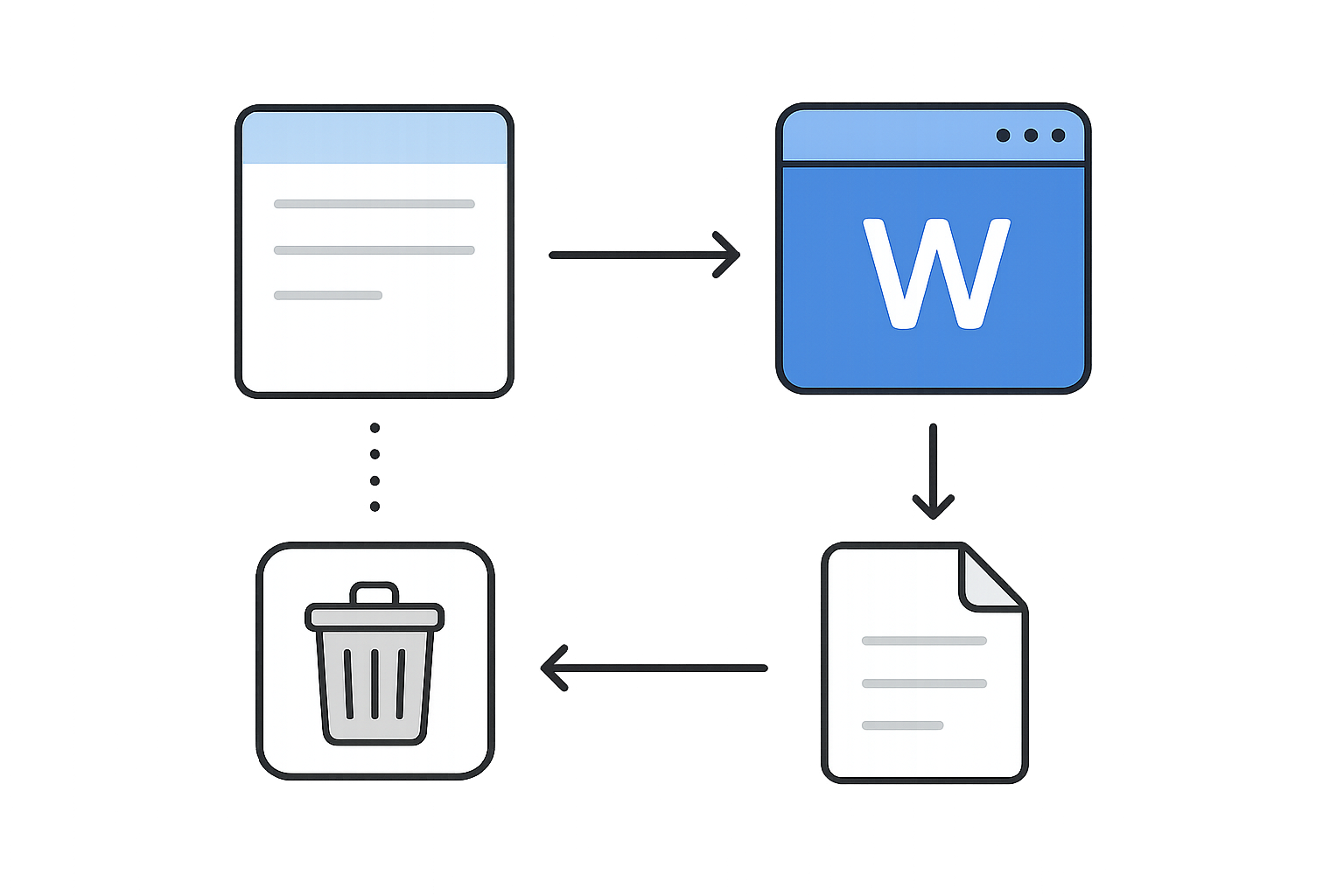
Hit the "Delete" key or "Backspace" on your keyboard to remove the content from the page. This action should ideally remove the page as well.
Check for Hidden Elements
If the page persists, look for hidden elements like page breaks or empty paragraphs. Remove these elements.
Save Your Changes
Once the page has been successfully removed, click on the "Save" button to ensure your changes are retained.
Troubleshooting Common Issues When Deleting Pages
If you encounter problems, consider the following solutions:
- Page Not Deleting: Check for invisible elements such as text boxes or images. Use the "Show/Hide" feature to see potential culprits.
- Formatting Glitches: If deletion disrupts your document’s format, try using the undo function or reformatting the affected sections.
| Feature | Word Online | Microsoft Word Desktop |
|---|---|---|
| Accessibility | Any device with internet | Requires installation |
| Collaboration | Real-time edits | Limited to saved versions |
| File Size Limitation | 25MB for OneDrive | Much larger |
Conclusion and Additional Tips for Using Word Online Efficiently
Deleting a page in Word Online is a straightforward process once you understand the navigation and editing features available. Regularly check for formatting issues to maintain document integrity and consult features such as the undo button if mistakes are made. For those looking to optimize their Word Online experience further, consider exploring our free Word editor and tools like Word Counter for efficiency.
Frequently Asked Questions
How do I delete a blank page in Word Online?
To delete a blank page, ensure you've removed any hidden content or paragraph marks. Highlight any visible content and press the delete key.
What if my page doesn't delete after following the steps?
If the page doesn't delete, check for elements like text boxes or page breaks. Remove any invisible content as these can cause extra pages.
Can I recover a deleted page in Word Online?
Yes, you can recover deleted content using the "Undo" function or by retrieving an earlier version of your document from the version history.
Is there a limit to how many pages I can create in Word Online?
There is no strict limit, but performance may degrade with excessively large documents or numerous collaborative edits.
Are there any keyboard shortcuts for deleting content in Word Online?
Yes, you can use the "Delete" key or "Backspace" to delete. Use "Ctrl + Z" to undo any erroneous deletions.