

Quick Recovery Answer
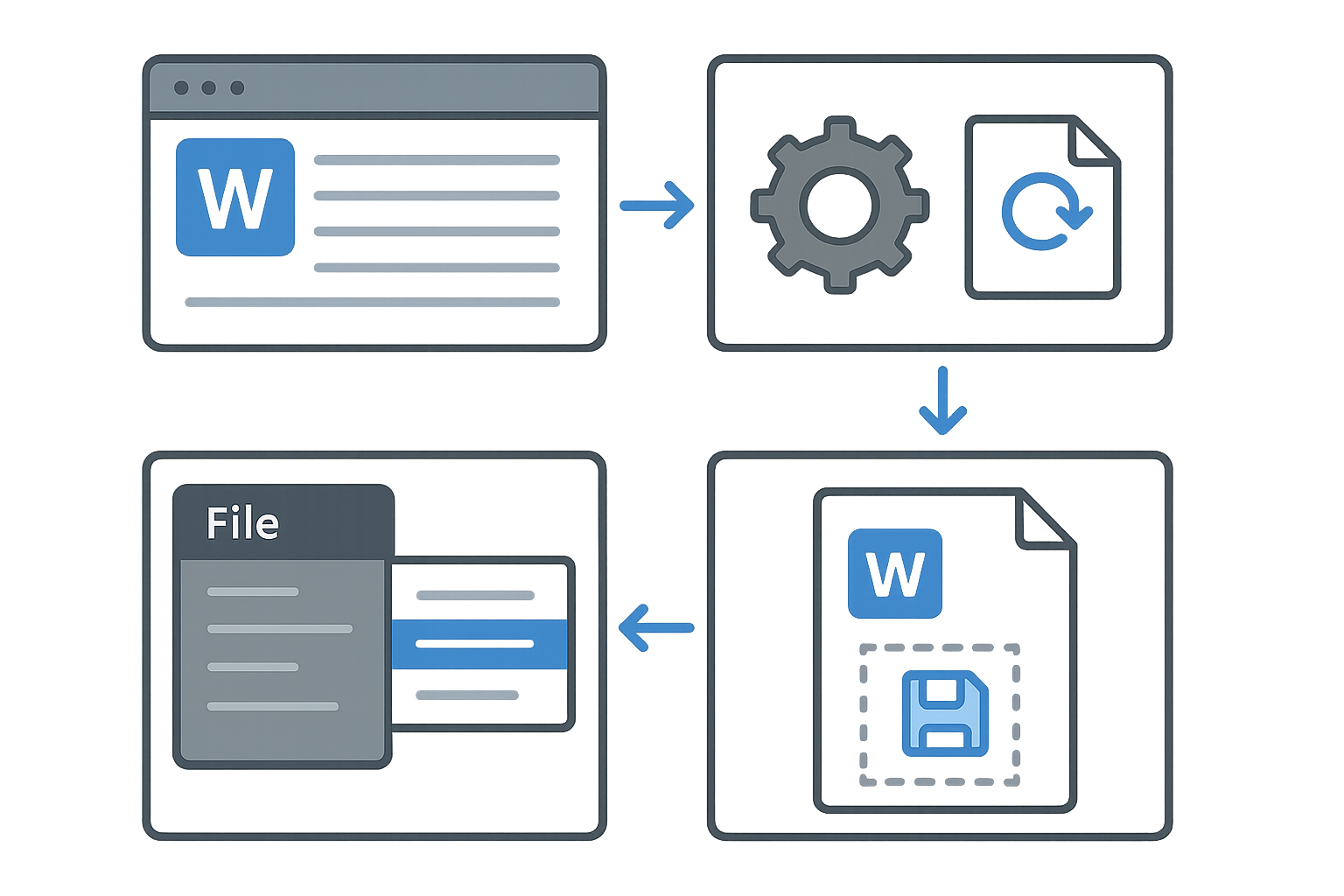
If you've accidentally closed a Word document without saving, you can recover it by accessing the AutoRecover feature or temporary files. This guide outlines the steps for both methods, ensuring you can retrieve your unsaved document seamlessly.
Comprehensive Guide to Recover Unsaved Word Documents
Method 1: Use AutoRecover
1. Open Microsoft Word.
2. Click on the "File" tab in the upper left corner.
3. Select "Info" from the sidebar.
4. Click on "Manage Document" and select "Recover Unsaved Documents."
5. Look for your unsaved document in the list and open it.Method 2: Check for Temporary Files
1. Open File Explorer.
2. In the address bar, type%TEMP%and press Enter.
3. Look for files that start with "~" or end with ".tmp."
4. Open these files in Word to check for your unsaved content.Method 3: Search for Previous Versions (Windows)
1. Locate the folder where your Word document was last saved.
2. Right-click on the folder and select "Properties."
3. Go to the "Previous Versions" tab.
4. Select a version before the file was lost and click "Restore."
Comparative Analysis of Document Recovery Tools
| Feature | WordOnline.online | Microsoft Word | Google Docs |
|---|---|---|---|
| Free Access | Yes | No (requires Microsoft 365) | Yes |
| No Signup Required | Yes | No | Yes |
| Temporary File Recovery | No | Yes | No |
| Auto-recovery Feature | No | Yes | Yes |
| Browser-Based | Yes | No | Yes |
Frequently Asked Questions
Can I recover an unsaved document if I closed Word?
Yes, you can recover it through the AutoRecover feature located in the File tab under the "Manage Document" option.
What should I do if AutoRecover is turned off?
If AutoRecover is disabled, check the temporary files stored on your computer since they may still contain unsaved data.
Is it possible to recover documents from the cloud?
If you were using an online tool like Google Docs, previous versions may be available through the "Version History" feature.
How do I ensure automatic saving is enabled?
In Word settings, go to "Save" and ensure the "AutoSave" feature is turned on for future peace of mind.
What to do if none of the recovery methods work?
If recovery fails, consider using data recovery tools or reaching out to IT specialists for further assistance.
Conclusion
Recovering an unsaved Word document can save you time and frustration. Utilizing the AutoRecover feature or checking temporary files are reliable methods. For further document management needs, explore our free Word editor, manage your text volume with our Word counter, convert files easily with our PDF to Word converter, or create PDFs smoothly with our Word to PDF converter.