

Quick Direct Answer
To remove a blank page in Word, check for hidden formatting marks like paragraph symbols, page breaks, or section breaks. Select them and delete to remove the blank page efficiently.
Step-by-Step Guide to Remove a Blank Page in Word
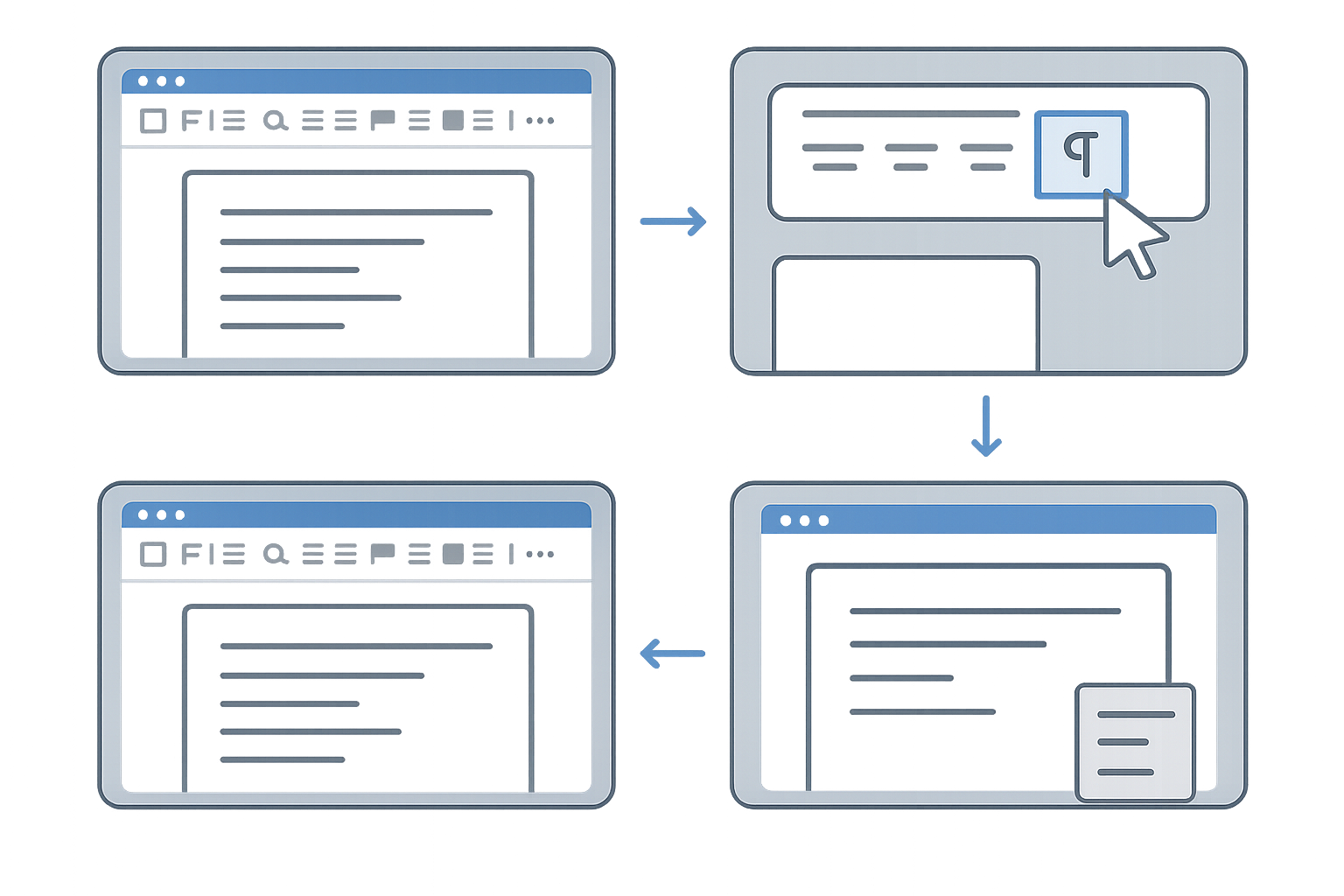
- Show Formatting Marks: Go to the Home tab and click on the '¶' icon to display paragraph marks and other hidden formatting symbols.
- Identify the Blank Page: Navigate to the blank page and look for any visible symbols that might be causing it.
- Delete Unwanted Formatting: Select any paragraph symbols, page breaks, or section breaks listed on the blank page and press the Delete key.
- Check Layout Options: If the blank page persists, check the Layout tab's settings, particularly for page size and margins.
- Delete Blank Pages After a Table: If your blank page follows a table, ensure there's no extra paragraph mark directly after the table.
- Save Changes: Finally, save your document after confirming that the blank page has been successfully removed.
Feature Comparison of Document Tools
| Feature | WordOnline.online | Microsoft 365 | Google Docs |
|---|---|---|---|
| Price | Free | Subscription Required | Free |
| Document Size Limit | No Limit | Limited by plan | 15 GB total |
| Real-Time Collaboration | Yes | Yes | Yes |
| Offline Access | No | Yes | Yes |
| Document Formatting Tools | Basic | Advanced | Moderate |
Frequently Asked Questions
Why does my Word document have a blank page?
A blank page in Word can be caused by extra paragraph marks, page breaks, or section breaks. Display formatting marks to identify and remove them.
How can I remove a blank page at the end of my document?
Navigate to the end of your document and delete any unnecessary paragraph symbols or page breaks that may be causing the blank page.
Will removing a blank page affect my document layout?
Generally, deleting blank pages won’t affect your layout if you ensure that no vital formatting elements are deleted alongside them.
Can WordOnline help me remove blank pages?
Yes, WordOnline provides a lightweight and easy-to-use interface to edit documents, including removing blank pages without the need for downloads or signups.
Conclusion
Removing a blank page in Word is simple and can be done by following a few easy steps. For a frictionless document creation and editing experience, consider trying WordOnline.online. You also have access to useful features like our Word Counter and PDF to Word converter.