
Quick Answer
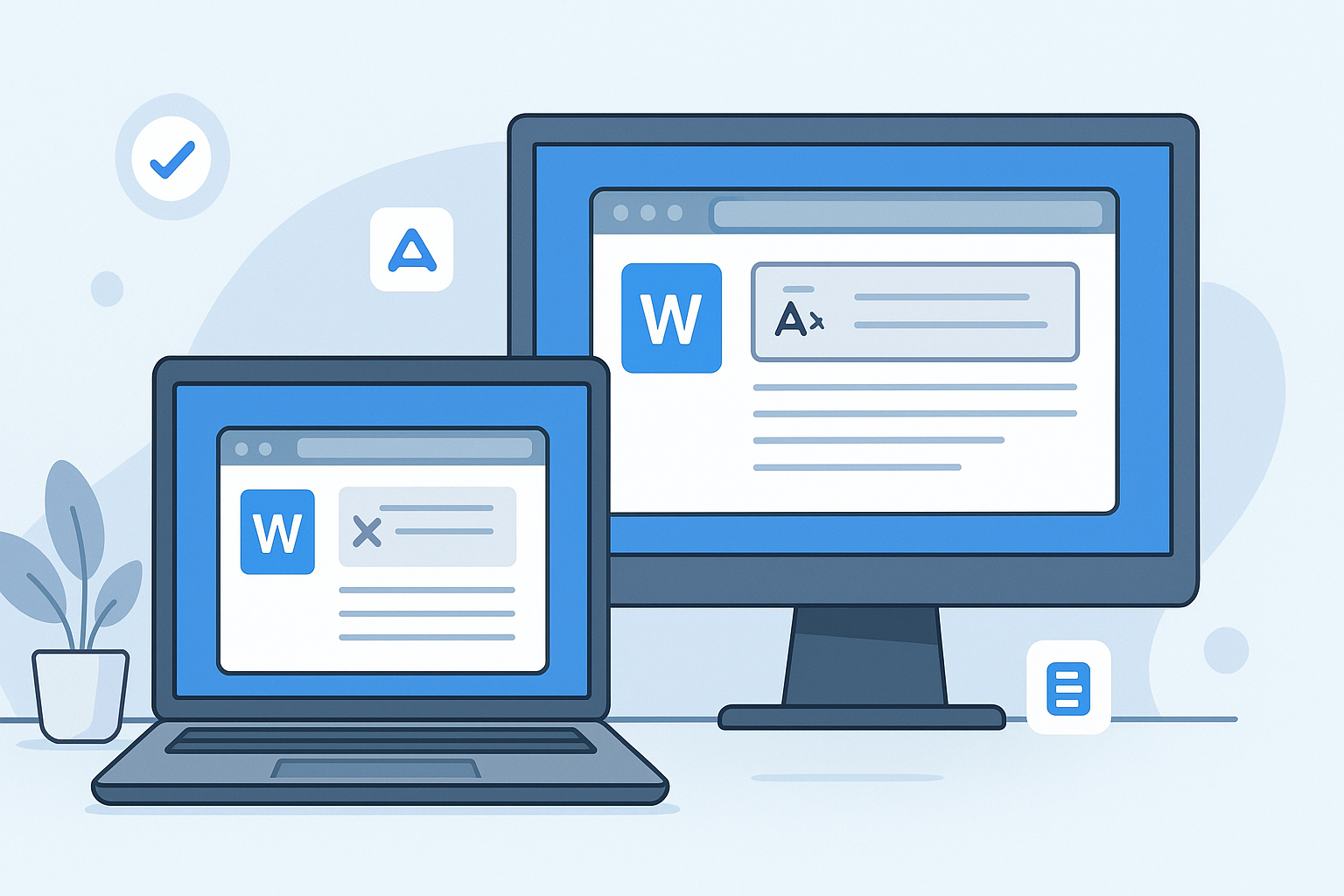
To remove formatting in Word, select the text, and use the 'Clear Formatting' option from the Home tab or use keyboard shortcuts like Ctrl + Spacebar or Ctrl + Shift + N for styles reset.
Comprehensive Guide to Removing Formatting
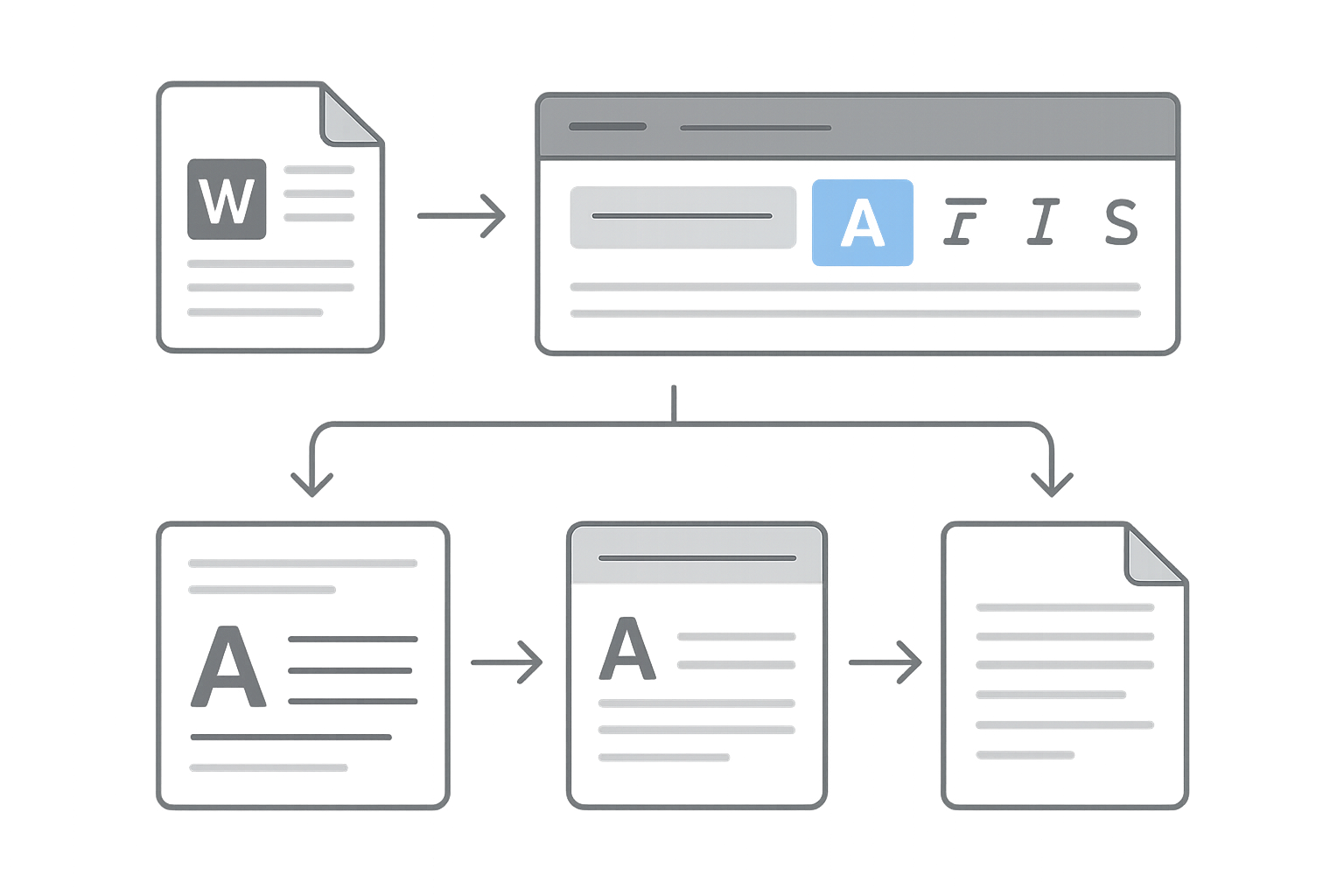
- Select Text: Highlight the text you want to reformat.
- Navigate to the Home Tab: Click on the 'Home' tab located at the top of the ribbon.
- Use 'Clear Formatting': Find the 'Clear All Formatting' button represented by an eraser icon (typically in the Font group).
- Keyboard Shortcut: Alternatively, press Ctrl + Spacebar to remove character formatting or Ctrl + Shift + N to apply the Normal style.
- Inspect Styles: If necessary, check and adjust style settings from the 'Styles' group in the Home tab.
- Save Your Document: Once satisfied, save your document to keep the changes.
Common Pitfalls
Users often overlook the 'Clear Formatting' button; remember that styles may still need adjustments post-removal.
Feature Comparison
| Feature | WordOnline.online | Microsoft 365 | Google Docs |
|---|---|---|---|
| Price | 100% Free | Subscription Required | Free with limitations |
| Document Editing | Yes | Yes | Yes |
| Document Conversion | Yes | Limited | Limited |
| Real-time Word Counter | Yes | No | No |
| Sign-up Requirement | No | Yes | Yes |
Frequently Asked Questions
What is the shortcut to clear formatting in Word?
The shortcut to clear formatting in Word is Ctrl + Spacebar, which removes character-level formatting, or Ctrl + Shift + N to revert to the Normal paragraph style.
Can I remove formatting from multiple sections at once?
Yes, you can select multiple segments of text with the mouse or keyboard while holding down the Ctrl key, then clear formatting for all selected sections simultaneously.
How do I revert to the original formatting?
To revert to the original formatting, you can use the 'Undo' function by pressing Ctrl + Z immediately after clearing the formatting.
Is there a way to remove formatting for the entire document?
Yes, select all text by pressing Ctrl + A and then use the 'Clear Formatting' option or the shortcut keys mentioned to apply changes to the entire document.
What if the formatting is not removed completely?
Sometimes, specific styles or paragraph formatting may remain. Ensure all relevant sections are selected, and check for hidden formatting marks by enabling 'Show/Hide Paragraph Marks' in the Home tab.
Conclusion
Removing formatting in Microsoft Word is straightforward with the right tools. For a seamless experience without the need for sign-ups, consider using WordOnline.online's Word Editor for editing and formatting tasks. Enhance your productivity further by utilizing our Word Counter and conversion tools like PDF to Word or Word to PDF.