

Quick Answer
To show word count in Google Docs, navigate to the 'Tools' menu, select 'Word count,' or use the keyboard shortcut Ctrl + Shift + C (Cmd + Shift + C on Mac). This will display an overview of word count, character count, and more.
How to Show Word Count in Google Docs
Understanding how to access and display the word count in Google Docs is crucial for anyone needing to keep track of document length and engagement level. Follow these straightforward steps to easily view word count metrics.
- Open Your Google Document: Begin by launching your preferred web browser and navigating to Google Docs. Open or create a new document where you need to check the word count.
- Access the Tools Menu: Look for the menu bar at the top of the document screen. Click on 'Tools' to reveal a drop-down menu.
- Select 'Word Count': From the drop-down, select 'Word count.' A dialogue box will appear, displaying the total number of words, pages, characters, and characters (excluding spaces).
- Use Keyboard Shortcuts (Optional): For a quicker method, simply press Ctrl + Shift + C on Windows or Cmd + Shift + C on Mac. This brings up the same word count dialogue box.
- Close the Dialogue Box: Once you have noted the word count, you can click 'OK' to close the dialogue box and continue working on your document.
- Track Word Count While Typing (Advanced): If you want to view the word count continuously, check the option 'Display word count while typing' to keep the count visible in your document bottom left.
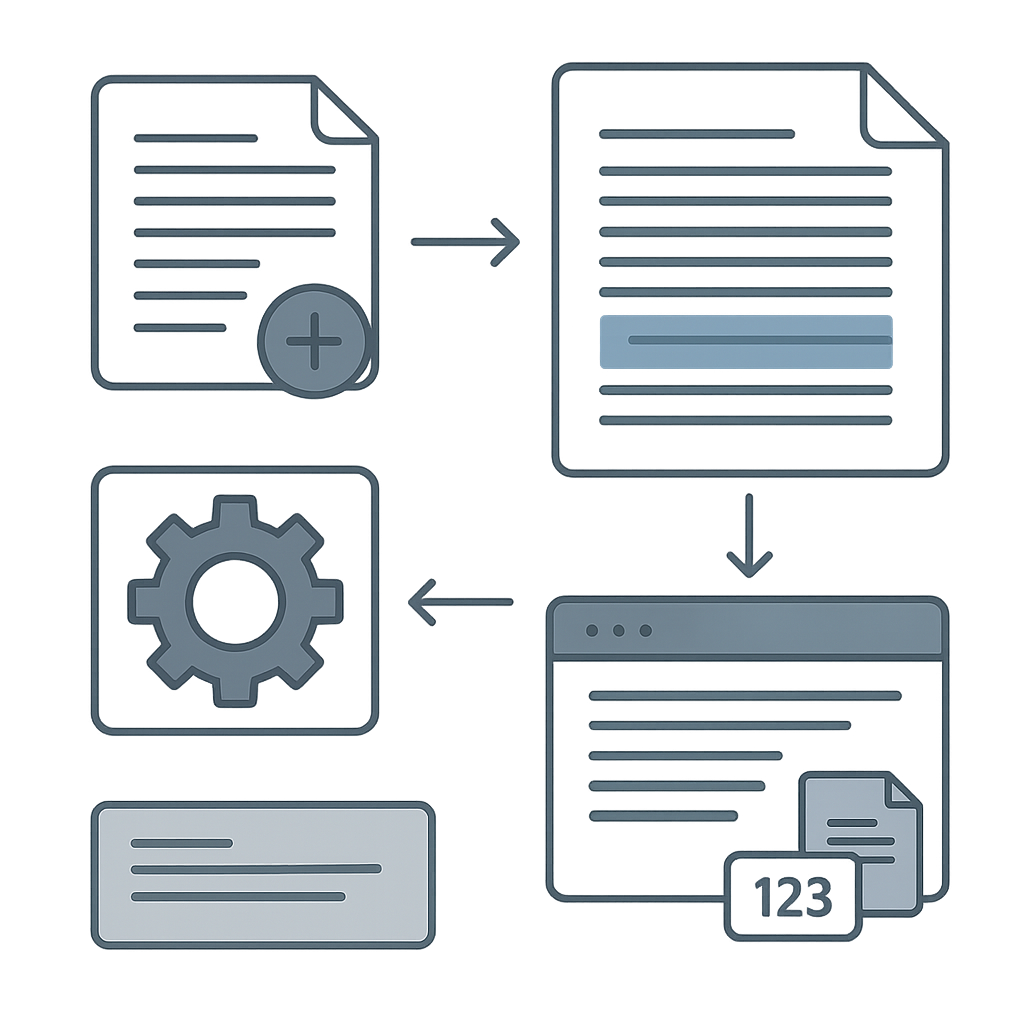
Following these steps ensures that you never lose track of your document's length, which is especially helpful for meeting deadlines or specific word count requirements.
Feature Comparison: Google Docs vs. WordOnline.online
| Feature | Google Docs | WordOnline.online |
|---|---|---|
| Word Count Tracking | Yes, with manual check | Real-time word count without interruption |
| Document Conversion | Limited PDF to Word conversion | Fast PDF to Word and Word to PDF conversion |
| No Signup Required | No | Yes |
| Browser-Based Editing | Yes | Yes, optimized for performance |
As seen in the comparison, while Google Docs offers basic functionalities, WordOnline.online stands out with its quick, real-time tracking and document conversion capabilities.
Frequently Asked Questions
Can I check the word count in Google Docs on mobile?
Yes, you can check the word count on mobile by selecting the three dots in the upper right corner, then going to 'Word count.'
How do I hide the word count in Google Docs?
To hide the word count while typing, simply uncheck the 'Display word count while typing' option in the word count settings.
Is there a limit to the word count in Google Docs?
Currently, Google Docs can handle documents up to 1.02 million characters. Check your word count frequently to ensure you're within limits.
What’s the benefit of real-time word count tracking?
Real-time tracking allows you to monitor your writing progress without constant interruption, helping maintain focus and meet deadlines.
How can I convert a Google Doc to PDF?
To convert a Google Doc to PDF, go to 'File,' select 'Download,' and choose 'PDF Document (.pdf).' This will download your document as a PDF file.
Conclusion
Knowing how to show word count in Google Docs is a fundamental skill for document creators. For a more efficient experience with greater functionalities, consider using WordOnline.online's free Word Editor and keep track of your word count seamlessly. Explore our Word Counter tool or learn about our PDF to Word Converter.